How I Organize digital file organization services like Google Drive, Dropbox, Trello and Notion for a Tidy Business
- April

- 4 days ago
- 5 min read
Digital file organization services does not usually look urgent until it costs time. A missing client file, three versions of the same proposal, or a project note buried in the wrong place can turn a simple task into a slow search.
As April Kelly, an independent Virtual Assistant, I set up digital spaces so business files are easy to find, share, and maintain. I keep the system simple because simple systems are the ones people keep using.
Here is the exact approach I use for cloud storage and project tools when a business needs a tidy, practical setup.

I start with a simple file map before touching the tools
Before I create folders in Google Drive or Dropbox, I make a file map. This is a plain outline of the main areas of the business.
Most small businesses do not need dozens of top-level folders. Too many choices make filing harder. I usually start with five to seven main folders, such as:
Admin
Clients
Finance
Offers and Services
Operations
Templates
Marketing Materials
Then I add only the subfolders that are truly needed. For example, under `Clients`, I may create one folder per client, then use the same structure inside each client folder:
Agreements
Briefs
Deliverables
Invoices
Notes
This works because it reduces decision-making. If every client folder follows the same pattern, I do not need to guess where something belongs.
A tidy setup also helps with privacy. Google Drive and Dropbox both allow shared folders and access permissions, so files can be shared at folder level instead of sending scattered links one by one. I always check who needs access, what they need to see, and whether they should be able to edit or only view.
I use naming rules that make search easier
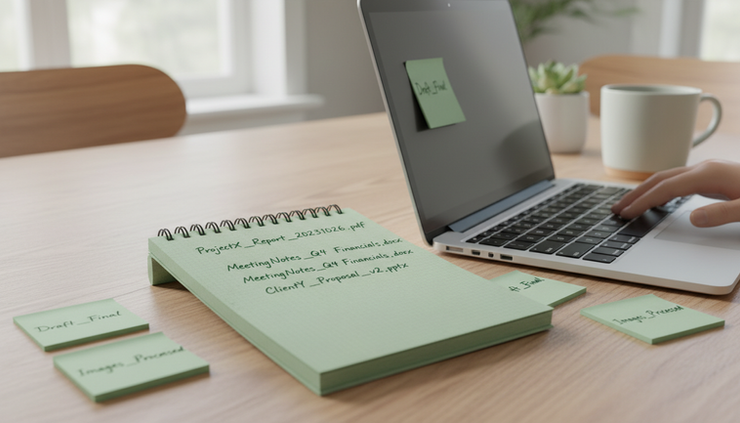
Search is useful, but it works better when file names are clear. I avoid vague names like `final document`, `new version`, or `client notes updated`.
My usual file naming format is:
`YYYY-MM-DD Client Name Document Type Short Description`
For example:
`2026-08-01 Santos Coaching Invoice July Retainer`
The date format keeps files in order. The client name adds context. The document type tells me what the file is without opening it.
For shared teams or repeat projects, I also add version labels when needed:
`Draft`
`For Review`
`Approved`
`Archived`
I avoid calling anything `Final` unless it really is approved and complete. A folder full of `Final`, `Final 2`, and `Final Final` is a sign that the process needs a clearer review step.
For Google Drive organization, I also use shared drives or shared folders carefully. I keep business-wide templates in one place and avoid saving separate copies unless a client-specific version is needed.
I keep Google Drive and Dropbox roles clear
When a business uses both Google Drive and Dropbox, I do not treat them as duplicate filing cabinets. That causes confusion fast.
Instead, I choose a clear purpose for each tool. For example:
Google Drive
Dropbox
Working documents, shared drafts, internal references, templates
Large files, final assets, handover folders, archived project materials
This is only an example. The exact split depends on how the business already works. The key rule is this: one file should have one main home.
If a file must appear in more than one place, I use a link or shortcut where possible instead of uploading another copy. This helps prevent version confusion.
I also create an `Archive` folder. Archive does not mean delete. It means the file is no longer active, but may still be needed later for records, reference, or repeat work. For example, I might archive completed client projects by year:
`Archive > 2025 > Client Name`
That keeps active folders clean without losing the history.
I set up Trello around stages, not random tasks
Trello works well when each board represents a clear area of work. I often set up boards for client projects, content planning, or weekly operations.
The most common mistake I see is creating lists that are too vague. A board with `Tasks`, `Ideas`, and `Done` can work for a very small process, but it often becomes messy as the workload grows.
For a client project board, I prefer lists based on stage:
New Requests
In Progress
Waiting for Client
For Review
Completed
Each card should hold the details needed to do the work:
Task name
Due date
Checklist
Links to the correct cloud folder
Notes or instructions
File attachments only when necessary
The cloud folder link matters. I do not want project files living only inside a card. I use Trello to track the work, and Google Drive or Dropbox to store the files. That separation keeps both tools cleaner.

I use Notion for the business hub
Notion is helpful when the business needs one place for reference information. I use it for items that people need to read, update, and return to often.
A simple Notion setup may include:
Business dashboard
Client directory
Standard task steps
Meeting notes
Content ideas
Service details
Useful links
I keep pages short and clear. A long page with everything on it is hard to use. I prefer a main dashboard that links to smaller pages.
For example, a client page might include:
Main contact details
Project summary
Link to the client folder
Link to the Trello board
Notes from recent calls
Standard preferences
This creates one starting point. Instead of searching messages, folders, and notes separately, I can open the client page and follow the links.
I build a weekly tidy-up habit into the system
Even the best setup needs maintenance. I usually recommend a short weekly file reset. It can take 15 to 30 minutes if done regularly.
My weekly tidy-up checklist looks like this:
Move loose files into the right folders
Rename unclear files
Check shared access for new collaborators
Archive completed items
Update project boards
Add missing folder links to Trello or Notion
Delete true duplicates after checking which copy is correct
This small habit prevents digital clutter from growing again. It also helps when tax season, client handovers, or team changes come around.
I offer digital file organization services because many business owners do not need a complicated system. They need a clear one that fits how they already work.

A tidy system should feel easy to use
A good digital setup answers three questions quickly:
Where does this file belong?
Who needs access to it?
What is the current status of the work?
When Google Drive, Dropbox, Trello, and Notion each have a clear role, the whole business feels easier to manage. Files have a home. Tasks have a status. Notes have a place to live.
If your files are scattered and your project tools feel messy, I can help you set up a system that is simple to maintain. You can contact me here to organise your digital files and systems.
Start with one folder, one naming rule, and one weekly reset. That is often enough to turn digital clutter into a system that supports the way you work.

Comments